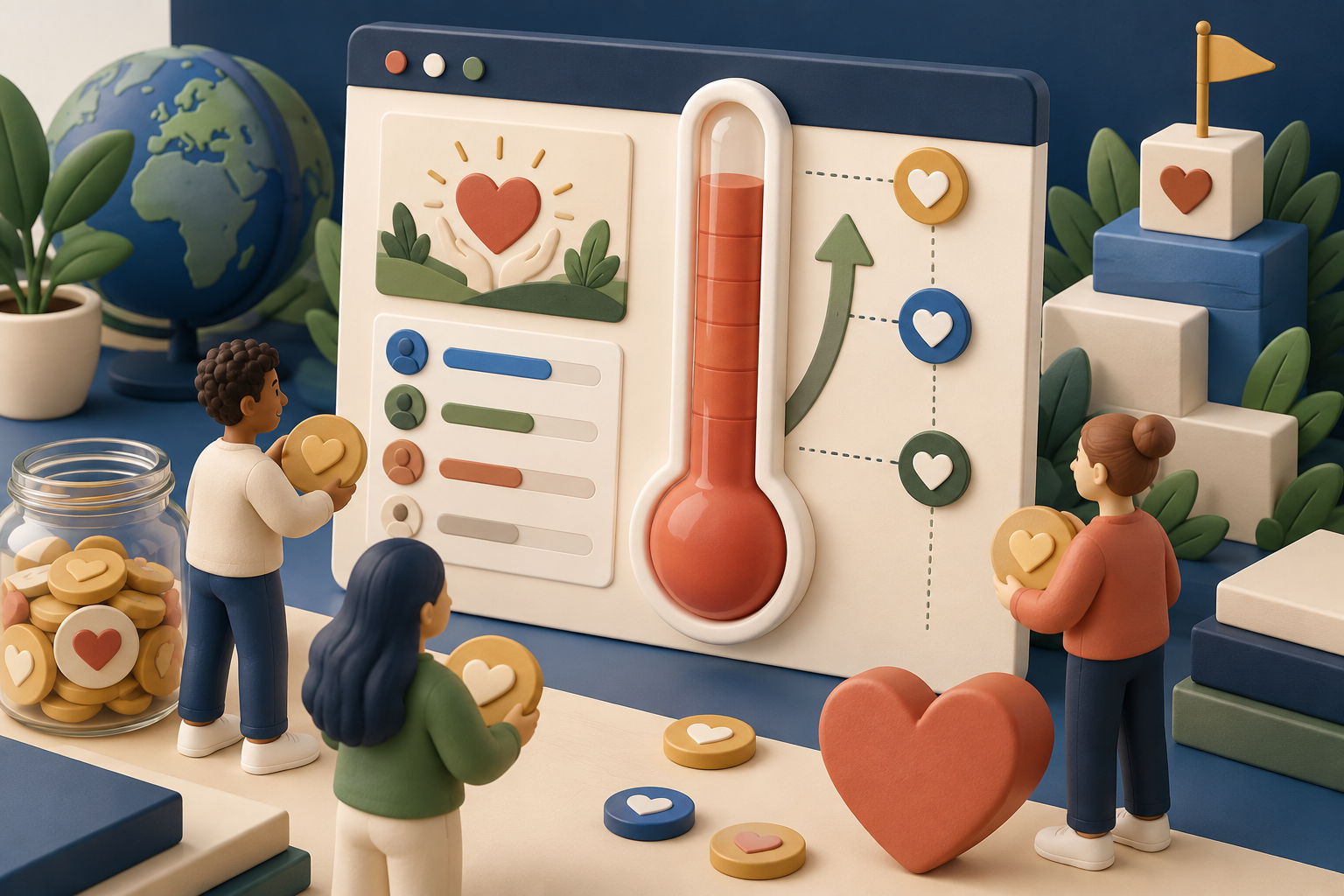
A donation thermometer helps visitors understand progress toward a real target. It should display an accurate amount, currency, goal and update time in text as well as visually, without inventing urgency.
Step 1: Define the goal
Record the target amount, currency, deadline, eligible donations, treatment of fees, matching gifts, refunds, offline gifts and restricted funds. Use one consistent calculation everywhere the total appears.
Step 2: Choose the data source
The most reliable source is the system that records transactions. Tools such as GiveWP and Charitable can connect campaign totals with forms and donor records. A manual thermometer works for a small campaign only when someone owns reconciliation.
Step 3: Create the donation form
Keep required fields minimal, and explain payment processing, recurring gifts, receipts, privacy and any fee-recovery option. Test keyboard navigation, mobile entry, validation, confirmation, failed payments and refunds.
Step 4: Add the progress display
Use the campaign block from your chosen plugin or an accessible custom display. Show the amount raised and the target as readable text. Never rely on colour, height or animation alone.
Step 5: Label the calculation
State whether the public total is gross donations or net funds, whether offline gifts are included, how matching funds appear and when the figure was last updated.
Step 6: Test the edge cases
- Zero donations, a tiny total, exact completion and an exceeded goal
- Refunds, multiple currencies and recurring payments
- Manual gifts and delayed gateway notifications
- Caches that freeze the displayed value
Step 7: Reconcile and close honestly
Compare the public total against processor transactions and accounting records on a defined schedule, log manual changes and restrict who can edit them. When the campaign ends, publish the result. If the target or deadline changes, keep the original context and say why.
Performance notes
Load campaign assets only where needed, cache totals at a safe interval instead of polling constantly, exclude checkout and donor pages from public caching, and watch failed webhooks.
Read next
- Fundraising thermometer plugins - the tools that render the progress bar
- WordPress donation plugins - the payment layer underneath
- WordPress crowdfunding plugins - reward-based campaigns
- Run a live speed test - campaign pages must load fast
Common questions
Can I update the thermometer manually?
Yes. Assign responsibility, record changes, reconcile regularly and show an updated time.
Should refunded donations reduce the total?
Usually yes when reporting actual funds raised. Publish the calculation method either way.
Is a donation thermometer accessible?
It can be, when amounts appear in text, contrast is sufficient, motion is controlled and the page works with a keyboard.
Fast WordPress editorial
Independent research edition · Published 10 September 2026. We update field guides when a plugin's documented capabilities change.